ID Photo Maker: Create ID Photos Online for Cards, Badges, and Applications
Last Update: June 15, 2026
Need a photo for an ID card, employee badge, student card, license, permit, membership card, or application form? 123PassportPhoto’s ID Photo Maker helps you create an ID photo online from your own image.
You can upload a clear photo, choose the required ID photo format, crop the image online, and download the finished file for digital use or printing.
This page focuses on everyday ID photos, not only passport or visa photos. Different ID cards, organizations, and application systems may require different photo sizes, backgrounds, and file formats.
What Is an ID Photo Maker?
An ID Photo Maker is an online tool that helps you prepare a photo for identification documents and cards. Instead of manually resizing your image, you can select the required photo format, crop your face correctly, and download the final image.
You can use it for many types of ID photos, such as:
- Student ID cards
- Employee badges
- Company access cards
- Membership cards
- Library cards
- Exam registration photos
- Professional license photos
- Work permit photos
- Residence permit photos
- Driver’s license application photos
- Online account verification photos
- Local ID or government form photos
The exact requirement depends on the organization or application system. Always check the instructions before submitting your photo.
ID Photos Are Not One-Size-Fits-All
Many people assume that every ID photo uses the same size. That is not always true. A student card photo may use one format, while a license, permit, badge, or government document may require another.
Before creating your ID photo, check:
- What document is the photo for?
- Does the photo need to be digital or printed?
- What size is required?
- Is the size listed in pixels, inches, millimeters, or centimeters?
- What background colour is required?
- Does the face need to be centered in a specific way?
- Are glasses, hats, uniforms, or accessories allowed?
- Is there a maximum file size for upload?
- Does the photo need to be taken recently?
Choosing the correct format first helps avoid resizing or uploading problems later.
Common Uses for an ID Photo Maker
The ID Photo Maker is useful whenever you need a clear identification-style photo for an official document, card, badge, or online application.
National ID Card Photo
Many countries require a photo for a national ID card, identity card, resident card, or local government ID. The exact size and background rules depend on the country or issuing authority, so always check the official instructions before creating the photo.
Use a clear front-facing photo where your face is visible, the background is plain, and the image has not been heavily edited.
Resident ID or Local Identity Document Photo
Some local identity documents, residence cards, and civil registration documents require a printed or digital ID photo. These photos may have stricter rules than school or workplace ID photos, especially for background colour, head position, and image size.
Before uploading or printing, confirm whether the photo needs to be submitted digitally, printed, or attached to a form.
Student ID Photo
Schools, colleges, and universities may ask for a photo for student cards, exam records, online portals, or registration forms. A clean front-facing photo with a simple background usually works best.
Employee Badge Photo
Companies often need photos for employee badges, office access cards, internal systems, and staff directories. A clear, professional-looking photo helps the badge identify you easily.
Driver’s License and Permit Photo
Some driver’s license, permit, and registration documents require a photo upload or printed image. These may include professional licenses, work permits, residence permits, and local application forms.
Membership Card Photo
Clubs, gyms, libraries, associations, and membership programs may use ID photos for access control or member identification.
Online Profile or Verification Photo
Some online systems ask for a face photo for identity verification, account setup, or digital profile use. The photo should be clear, natural-looking, and not heavily edited.
Start with a Clear Original Photo
A good ID photo starts with a good original image. Cropping can help with size and framing, but it cannot fully fix a blurry or poor-quality photo.
Use a photo where:
- Your face is clearly visible
- You are looking directly at the camera
- The photo is sharp and in focus
- The lighting is even
- There are no strong shadows
- No other person appears in the photo
- Your face is not covered
- The photo looks natural and recent
Avoid using screenshots, social media downloads, compressed chat-app images, filtered selfies, scanned old photos, or photos taken from printed photos.
How to Create an ID Photo Online
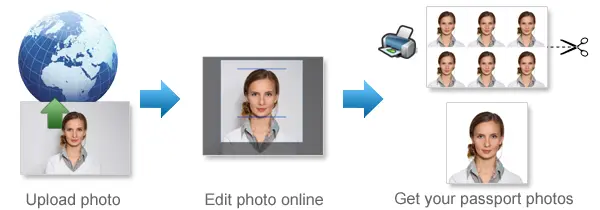
Use 123PassportPhoto to create your ID photo in a few steps.
Step 1: Choose the ID Photo Format
Select the document type, country, or photo size that matches your requirement. If your form lists a custom size, check the size carefully before creating the photo.
Step 2: Upload Your Photo
Upload a clear photo from your phone, computer, or camera. Use the original image file whenever possible.
Step 3: Crop the Image
Adjust the crop so your face is centered and the image fits the selected ID photo format.
Step 4: Download the Finished Photo
Download the final photo. You can use it for digital upload or print it if your document requires a physical copy.
If you want a broader guide to creating passport-style photos online, read our passport size photo maker online guide.
Digital ID Photo
Many ID photos are now submitted online. A digital ID photo should be clear, properly cropped, and saved in the format accepted by the application system.
Before uploading, check:
- File format
- File size limit
- Pixel dimensions
- Background requirement
- Image clarity
- Face position
- Whether filters or editing are allowed
- Whether the photo must be recent
If the upload fails, return to the original image and create a new file instead of repeatedly editing a poor-quality version.
Printable ID Photo
Some ID photos still need to be printed and attached to a form or submitted in person.
Before printing, check:
- The final size matches the requirement
- The photo is printed in colour if required
- The print is sharp and clear
- The paper is suitable for the document
- The printer has not resized or stretched the image
- There are no ink marks, stains, scratches, or creases
- The photo is not cut too tightly
If you print at a photo shop, provide the exact size requirement. Do not assume every ID photo uses the same dimensions.
Common ID Photo Mistakes
Many ID photo problems happen because the wrong format or a low-quality source image is used.
| Problem | Why It Matters |
|---|---|
| Wrong photo size | The document may require a specific format |
| Wrong background | Some IDs require a plain, white, light, or blue background |
| Blurry image | The face may not be easy to identify |
| Screenshot source | Image quality may be too low |
| Heavy filters | The photo may not show your real appearance |
| Face too small | The image may not work well on a small card |
| Face too large | The photo may look poorly cropped |
| Printer scaling | Printed size may be wrong |
| Old photo | The photo may not match your current appearance |
| Accessories covering face | The ID may not clearly identify you |
If the photo has several problems, take a new photo instead of trying to repair the old one.
ID Photo for Children
Children may also need ID photos for school cards, travel documents, permits, exams, or membership programs.
For a child ID photo:
- The child should be the only person in the image
- The face should be clearly visible
- The photo should be sharp
- No toys, hands, arms, or other people should appear
- The image should not be heavily edited
Take several photos and choose the clearest one before cropping it online.
FAQ About ID Photo Maker
Can I make an ID photo online?
Yes. You can use 123PassportPhoto to upload your image, select the required ID photo format, crop it online, and download the finished photo.
What can I use an ID photo for?
You can use an ID photo for national ID, student cards, work badges, licenses, permits, membership cards, registration forms, and other identification documents.
Is an ID photo the same as a passport photo?
Not always. Some ID photos may be less strict, while passports usually have specific government rules. Always choose the format required by your document.
Can I use a phone photo?
Yes, if it is clear, sharp, recent, and taken against a suitable background. Use the original phone file instead of a compressed copy.
Can I use a selfie?
It is better to ask someone else to take the photo. A selfie may distort your face or create an unsuitable angle.
Can I create a digital ID photo?
Yes. If your document or application accepts digital upload, you can download a digital file and use it if it meets the required file rules.
Can I print the ID photo?
Yes. If your document requires a printed photo, download the file and print it at the required size.
What size should an ID photo be?
It depends on the document. Check whether your form or organization requires a size in millimeters, inches, centimeters, or pixels.
Can I edit my ID photo?
You can crop the photo for the correct format, but avoid filters, face reshaping, beauty effects, or edits that make the photo look unlike you.
Create Your ID Photo Online
Use 123PassportPhoto’s ID Photo Maker to prepare an ID photo for cards, badges, licenses, permits, applications, and other documents. Upload your image, choose the correct format, crop it online, and download the finished photo.