Canada Passport Photo Maker: Prepare a Canadian Passport Photo Online
Last Update: June 15, 2026
Need a photo for a Canadian passport application or renewal? 123PassportPhoto’s Canada Passport Photo Maker helps you prepare a Canadian passport photo online from your own image.
You can select Canada, upload a clear photo, crop it to the Canadian passport photo format, and download the finished file for printing.
Canada Passport Photos Are Different from U.S. 2x2 Photos
One of the most common mistakes is assuming that a Canadian passport photo is the same as a U.S. passport photo. It is not.
A U.S. passport photo is usually 2 x 2 inches. A Canadian passport photo uses a taller format. If you submit or print the wrong size, the photo may not be suitable for a Canadian passport application.
Use the Canada Passport Photo Maker when you need to prepare the Canadian format instead of a generic square passport photo.
Before making your photo, check:
- Are you preparing a Canadian passport photo, not a U.S. passport photo?
- Do you need printed photos?
- Do you need photographer or studio information on the back?
- Does one photo need a guarantor declaration and signature?
- Are you applying for a new passport, child passport, or adult renewal?
The answers affect how you prepare and use the final photo.
Prepare a Canada Passport Photo Before Printing
The Canada Passport Photo Maker helps with the formatting step. You can upload a clear image, crop it to the Canadian passport format, and download the result for printing.
This is useful if you want to:
- Prepare a Canadian passport photo file
- Avoid using the wrong 2x2 inch format
- Create a printable photo before visiting a print shop
- Replace a photo that was cropped incorrectly
- Reprint the photo if the first print is damaged
- Check the photo layout before submitting your application
A good file does not replace the official photo submission rules. Canadian passport photos may require specific information on the back of the printed photo, including photographer or studio details.
Do You Need a Photographer or Studio?
Canadian passport photo rules include requirements for the back of the printed photo. The photographer must clearly write or stamp the date the photo was taken, the name of the photo studio, and the complete address of the photo studio on the back of one photo.
Because of this, many applicants use a commercial photographer or photo studio for Canadian passport photos.
If you prepare your photo online, make sure your final submission method still meets the required photo rules. A correctly cropped file is only one part of the process.
Before submitting, confirm:
- Whether your application requires two printed photos
- Whether the photo must include studio information
- Whether your guarantor must sign one photo
- Whether you are exempt from the guarantor photo signature because you are renewing an adult passport
- Whether your print shop or studio can provide the required back-of-photo details
Guarantor Signature on Canadian Passport Photos
For many Canadian passport applications, one of the printed photos must include a guarantor declaration and signature on the back.
The guarantor may need to write a declaration such as confirming the photo is a true likeness of the applicant, then sign the photo.
However, adult passport renewals are different. If you are renewing an adult Canadian passport, you do not need a guarantor, and you do not need a guarantor signature on the photo.
This is why it is important to know your application type before you prepare the final printed photos.
For New Passport, Renewal, or Child Passport Photos
The Canada Passport Photo Maker can help in several situations.
New Canadian Passport Application
If you are applying for a new Canadian passport, prepare a recent photo that clearly shows your current appearance. Check whether one photo needs a guarantor declaration and signature.
Adult Passport Renewal
If you are renewing an adult Canadian passport, you still need suitable passport photos, but you generally do not need a guarantor signature on the photo.
Child Passport Photo
For a child passport, the photo should clearly show the child. A guarantor declaration may be required on the back of one photo, depending on the application type.
Reprint After Damage
If a printed photo is scratched, stained, creased, or marked, it may not be suitable. Keeping a clean digital copy can help you reprint the image if needed.
Start with a Clear, Natural Photo
The final passport photo depends on the original image. Cropping helps with format, but it cannot fully fix a poor photo.
Use a photo where:
- Your face is clearly visible
- You are looking directly at the camera
- The photo is sharp and in focus
- The lighting is even
- There are no strong shadows
- Your eyes are visible
- The image has not been heavily edited
- The photo shows your current appearance
Avoid screenshots, social media images, filtered selfies, compressed messaging-app images, old passport scans, and photos taken from printed photos.
How to Create a Canada Passport Photo Online
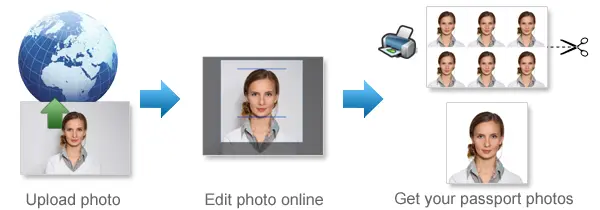
Use 123PassportPhoto to prepare your Canada passport photo in a few steps.
Step 1: Select Canada
Choose Canada from the country list.
Step 2: Choose Passport Photo
Select the passport photo option for Canada.This tells the tool to use the Canadian passport photo format.
Step 3: Upload Your Photo
Upload a clear photo from your phone, computer, or camera. Use the original image file whenever possible.
Step 4: Crop the Image
Adjust the crop so your face is centred and the image fits the Canadian passport photo format.
Step 5: Download the Finished File
Download the final passport photo file. You can print it if your application route requires printed photos.
If you want a general guide to how online passport photo tools work for different countries and document types, read our passport size photo maker online guide.
Printing a Canadian Passport Photo
If your application requires printed photos, the final print should be clear, correctly sized, and free of damage.
Before using the printed photo, check:
- The photo is printed in the correct Canadian passport format
- The image is clear and sharp
- The paper is suitable for photo printing
- The print is not stretched or distorted
- There are no ink marks, creases, scratches, or stains
- There is enough space on the back for required information
- The photographer or studio details are written or stamped if required
- The guarantor declaration and signature are added if required
Do not use a photo if it has printer lines, damaged corners, smudges, or incorrect sizing.
Common Canada Passport Photo Problems
Before submitting your photo, check for common issues.
| Problem | Why It Matters |
|---|---|
| Using a U.S. 2x2 photo | Canada uses a different passport photo format |
| Missing studio information | The back of one photo may need photographer details |
| Missing guarantor signature | Some applications require one photo to be signed |
| Wrong renewal assumption | Adult renewals do not need a guarantor |
| Heavy editing | May change your appearance |
| Blurry photo | Face may not be clearly identifiable |
| Printer scaling | Final size may be incorrect |
| Damaged print | Scratches, stains, or creases may make the photo unsuitable |
| Old photo | May not show your current appearance |
If the photo has several problems, take a new photo or prepare a new print.
Child and Baby Canadian Passport Photos
Taking a passport photo for a child or baby can take several attempts. The child should be the only person visible in the final image.
For a child or baby photo:
- Use a plain background
- Make sure the face is visible
- Keep the image clear and sharp
- Avoid toys, hands, arms, or other people in the frame
- Do not use filters or retouching
- Choose the clearest image before cropping
For babies, try placing the baby on a plain sheet and taking the photo from above. Make sure there are no strong shadows and no supporting hands are visible.
Before submitting a child passport application, check whether the back of one photo needs the required guarantor declaration and signature.
Full Canada Passport Photo Requirements
This page focuses on using the Canada Passport Photo Maker and preparing a printable photo file.
For complete technical rules, including exact size, face height, background, lighting, clothing, glasses, child photos, print quality, photographer details, and guarantor rules, check the full Canada passport photo requirements page.
FAQ About Canada Passport Photo Maker
Can I make a Canadian passport photo online?
Yes. You can use 123PassportPhoto to select Canada, upload your photo, crop it online, and download the finished passport photo file.
Is a Canadian passport photo the same as a U.S. 2x2 photo?
No. Canadian passport photos use a different format from U.S. 2x2 passport photos. Make sure you select Canada before cropping.
Do Canadian passport photos need photographer information on the back?
Canadian passport photo rules say the photographer must clearly write or stamp the date the photo was taken, the name of the photo studio, and the complete address of the studio on the back of one photo.
Does a guarantor need to sign the photo?
For many passport applications, one photo needs a guarantor declaration and signature. Adult passport renewals do not need a guarantor signature.
Can I use a phone photo?
Yes, if the original photo is clear, sharp, recent, and not heavily edited. However, make sure your final printed photo still meets Canadian passport submission requirements.
Can I use a selfie?
It is better to ask someone else to take the photo. A selfie can distort the face or create an unsuitable angle.
Can I print the Canada passport photo myself?
You may print the file if your application route allows it, but make sure the final printed photo meets the official requirements, including any required back-of-photo information.
Can I make a baby passport photo?
Yes. Take a clear photo where the baby is the only person visible, then upload it to the Canada Passport Photo Maker.
Is this the same as the Canada passport photo requirements page?
No. This page focuses on preparing a Canadian passport photo with the tool. For exact rules, check the full Canada passport photo requirements page.
Does the Canada Passport Photo Maker guarantee acceptance?
No online tool can guarantee acceptance. The tool helps prepare the photo format, but the original image, final print, back-of-photo information, and application-specific requirements must still meet the applicable passport photo rules.
Create Your Canada Passport Photo Online
Use 123PassportPhoto’s Canada Passport Photo Maker to prepare a Canadian passport photo file online. Select Canada, upload your image, crop it to the Canadian passport format, download the finished file, and print it according to your application requirements.