Australia Passport Photo Maker: Create a Printable Passport Photo Online
Last Update: June 15, 2026
Need a photo for an Australian passport application, renewal, or replacement? 123PassportPhoto’s Australia Passport Photo Maker helps you prepare a passport photo online from your own image.
You can select Australia, upload a clear photo, crop it for the Australian passport format, and download a file for printing if your application route requires printed passport photos.
This is useful if you want to prepare your passport photo before lodging an application through Australia Post, visiting a passport service location, or printing the final photo.
This page focuses on using the Australia Passport Photo Maker. For complete size, background, face position, printing, clothing, and photo quality rules, check the full Australia passport photo requirements page.
Prepare an Australian Passport Photo for Printing
If you are lodging an Australian passport application through Australia Post, you will usually need printed passport photos. The Australian Passport Office asks applicants to include two good-quality passport photos, and its photo guidelines describe passport photos as colour prints.
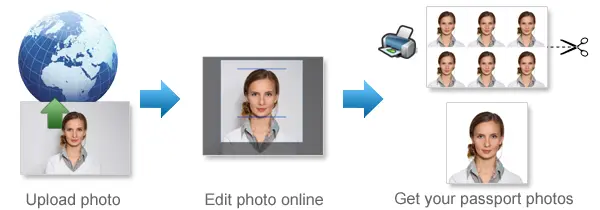
123PassportPhoto’s Australia Passport Photo Maker helps with the online preparation step. You can upload your photo, crop it for the Australian passport format, download the finished file, and print it on suitable photo paper.
This can help you avoid common layout and printing problems such as:
- Using the wrong passport photo size
- Cropping the face too close
- Leaving too much empty space
- Printing a stretched image
- Printing a photo that is too small or too large
- Starting with a low-quality image
A good final print starts with a clear original photo, the correct crop, and proper print settings.
If you need a more general guide for creating passport photos for different countries and document types, see our passport size photo maker online guide.
When to Use the Australia Passport Photo Maker
You can use the tool in several common situations.
Australian Passport Renewal
If you are renewing your Australian passport, use a recent photo that shows your current appearance. Do not reuse an old passport photo if your face, hair, age, or overall look has changed.
The photo should look natural and should not be edited to change your appearance.
First Australian Passport Application
For a first passport application, prepare your photo before submitting your documents. A clear, properly formatted photo can help reduce avoidable delays caused by photo issues.
Replacement Passport
If your passport was lost, stolen, damaged, or needs replacement, you may need a new photo. Use a recent photo rather than an old file saved from a previous application.
Child Passport Photo
Children and babies need passport photos too. Taking the photo at home gives you more chances to retake the image until you get a clear one.
Reprint After a Printing Problem
If your printed photo has smudges, ink marks, scratches, printer lines, or damaged edges, you can reprint from the final digital file instead of starting again from scratch.
Start with a Clean, Unedited Photo
A good Australian passport photo should be clear, natural-looking, and unedited. The Australian Passport Office has warned that even small edits, such as smoothing skin, brightening the background, removing shadows, or changing facial details, can cause problems with biometric checks.
Before uploading your photo to 123PassportPhoto, choose an original image that is already suitable.
Use a photo where:
- Your face is clearly visible
- You are looking directly at the camera
- The photo is sharp and in focus
- The lighting is even
- There are no strong shadows
- Your hair does not cover your eyes
- The photo has not been retouched
- The image shows your current appearance
Avoid edited photos, social media images, screenshots, compressed messaging app images, and photos where your face has been changed by filters or beauty effects.
How to Create an Australia Passport Photo Online
Use 123PassportPhoto to prepare your Australian passport photo in a few steps.
Step 1: Select Australia
Choose Austrlia as the country or region.
Step 2: Choose Passport Photo
Select the "passport photo" option. The tool will prepare the photo for the Australia passport photo format.
Step 3: Upload Your Photo
Upload a clear photo from your phone, computer, or camera. Use the best original image you have. Avoid screenshots or images saved from social media, because they may be compressed.
Step 4: Crop the Photo
The AI tool will automatically show you what the photo looks like after cropping. If you think the crop is not perfect, you may manually adjust the crop bar.
Step 5: Choose the enhancment you like
Choose your preferred result from the six enhancements.
Step 6: Download the Result
Download the finished photo. You can use the file for printing or keep a digital version if your application process requires a digital photo.
Printing Your Australian Passport Photo
For Australian passport use, the printed result can be just as important as the digital crop. A file that looks fine on screen may still print incorrectly if the printer settings or paper are unsuitable.
Before printing, check:
- The image is printed in colour
- The paper is suitable for photo printing
- The print is sharp and clear
- The printer does not resize the image automatically
- The photo is not stretched or distorted
- There are no printer lines, ink marks, scratches, or smudges
- The final print has not been cut too tightly
If you print at home, use suitable photo paper and check the final dimensions after printing. If you use a print shop, make sure the file is printed at the correct size without scaling.
Keep a Digital Copy for Reprints
After creating your Australian passport photo, keep the downloaded file. This can be useful if you need to reprint the photo because of a printing issue.
A printed passport photo can become unsuitable if it has:
- Smudged ink
- Scratches
- Creases
- Stains
- Printer lines
- Pixelation
- Damaged corners
- Incorrect trimming
Keeping a clean digital copy lets you print again without retaking the photo, as long as the photo is still recent and suitable for your application.
Child and Baby Australian Passport Photos
Taking a passport photo for a child or baby can take several attempts. The child should be the only person visible in the final image.
For a child or baby photo:
- Make sure the face is visible
- Keep the image clear and sharp
- Avoid toys, hands, arms, or other people in the frame
- Do not use filters or retouching
- Choose the clearest image before uploading
For babies, try placing the baby on a plain sheet and taking the photo from above. Make sure there are no strong shadows and no support hands are visible.
Once you have a usable photo, upload it to the Australia Passport Photo Maker and crop it for the Australian passport format.
Common Printing and Photo Problems
| Problem | Why It Matters |
|---|---|
| Blurry image | Face may not be clearly identifiable |
| Hair over eyes | Eyes should be clearly visible |
| Strong shadows | Can affect face visibility |
| Printer scaling | Final size may become incorrect |
| Low-quality paper | Print may not meet passport photo standards |
| Ink marks or scratches | Printed photo may be rejected |
| Old photo | May not show current appearance |
| Compressed image | May print with poor quality |
If the photo has several issues, take a new photo rather than trying to repair it with editing.
Quick Australia Passport Photo Reminder
This page explains how to use the Australia Passport Photo Maker. It is not a full requirements guide.
As a quick reminder, Australian passport photos should be clear, recent, natural-looking, and suitable for biometric checks. If printed photos are required for your application route, the final prints should be good quality and free of damage, marks, or printing problems.
For exact photo size, face size, background, lighting, clothing, glasses, baby photo, and print details, check the complete Australia passport photo requirements page.
FAQ About Australia Passport Photo Maker
Can I make an Australian passport photo online?
Yes. You can use 123PassportPhoto to select Australia, upload your photo, crop it online, and download the finished passport photo file.
Do Australian passport applications need printed photos?
If you are lodging an Australian passport application through Australia Post, you will usually need printed passport photos. The Australian Passport Office asks applicants to include two good-quality passport photos.
Can I use a phone photo?
Yes, if the original photo is clear, sharp, recent, and not heavily edited. Use the original phone file instead of a compressed image from a messaging app.
Can I use a selfie?
It is better to ask someone else to take the photo. A selfie can distort the face or create an unsuitable angle.
Can I print the passport photo myself?
Yes, if your application route requires printed passport photos. Use suitable photo paper, print at the correct size, and check that the printer does not scale, crop, or stretch the image.
Should I edit the photo before uploading?
No. Avoid retouching, skin smoothing, beauty filters, or any edits that change your appearance.
Can I make a baby passport photo?
Yes. Take a clear photo where the baby is the only person visible, then upload it to the Australia Passport Photo Maker.
What should I do if the printed photo has marks?
Print it again from the clean digital file. Do not use a photo with scratches, ink marks, smudges, stains, or printer lines.
Create Your Australia Passport Photo Online
Use 123PassportPhoto’s Australia Passport Photo Maker to prepare your passport photo online. Select Australia, upload your image, crop it, download the finished file, and print it if your application route requires printed passport photos.