Invert Photo
Drop, paste (Ctrl+V), or click to upload
Toggle the invert effect on or off:
Upload a photo to get started
Or try a sample:
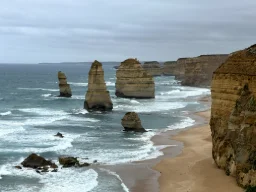
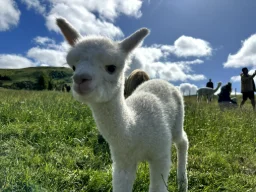
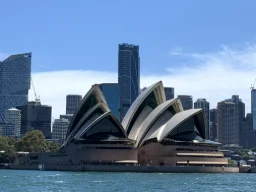
Invert Photo Online – Free & Instant
Our free online invert tool lets you create a negative image effect of any photo in seconds — no software to install and no account required. Simply upload your image, click Toggle Invert to flip every colour to its opposite, and download the result at full original resolution.
How to Invert a Photo
Drop a photo onto the panel, click Upload Photo, paste with Ctrl + V, or try one of the sample images. Supports JPEG, PNG, WebP, HEIC & GIF.
Click Toggle Invert to switch between the original and the inverted (negative) version. Click again at any time to go back.
Click Save Photo to download the result at full original resolution in the same format as your source file (JPEG, PNG, or WebP).
Why Use This Invert Tool?
- Full-resolution output – the invert effect is applied to an off-screen canvas at the original image dimensions, so the downloaded file matches the source pixel-for-pixel.
- HEIC support – iPhone photos in HEIC/HEIF format are automatically converted before editing.
- Instant toggle – switch the effect on and off with a single click to compare before and after without re-uploading.
- Works entirely in your browser – your photos are never uploaded to any server, so your privacy is fully protected.
- Free & unlimited – no signup, no watermarks, no limits.
Common Uses for Inverting an Image
Colour inversion is a versatile technique used across photography, design, and accessibility. Here are some popular reasons people invert photos:
- Creative photography – turn a daytime scene into a surreal negative image for artistic effect.
- Dark-mode assets – invert icons or diagrams to produce light-on-dark versions for dark-mode interfaces.
- Accessibility checks – view an image in inverted colours to check contrast and readability.
- Film negative simulation – recreate the look of a photo negative without a scanner.
- Design & print prep – invert a logo or graphic to create a knockout (white-on-dark) version.